UI mode
UI Mode (🏁 solution)
Using UI mode
Playwright comes with a UI mode built in. To run your tests in the UI mode, provide the
--ui option to the playwright test command (or your custom script using it, like our npm run test:e2e):npm run test:e2e -- --ui
Running this will launch the UI mode window that's split into several panels:
- The list of tests and test controls on the left;
- The timeline at the top;
- The "Actions" panel in the middle;
- The browser preview on the right;
- And a whole array of panels at the bottom ("Locator", "Source", "Call", etc).
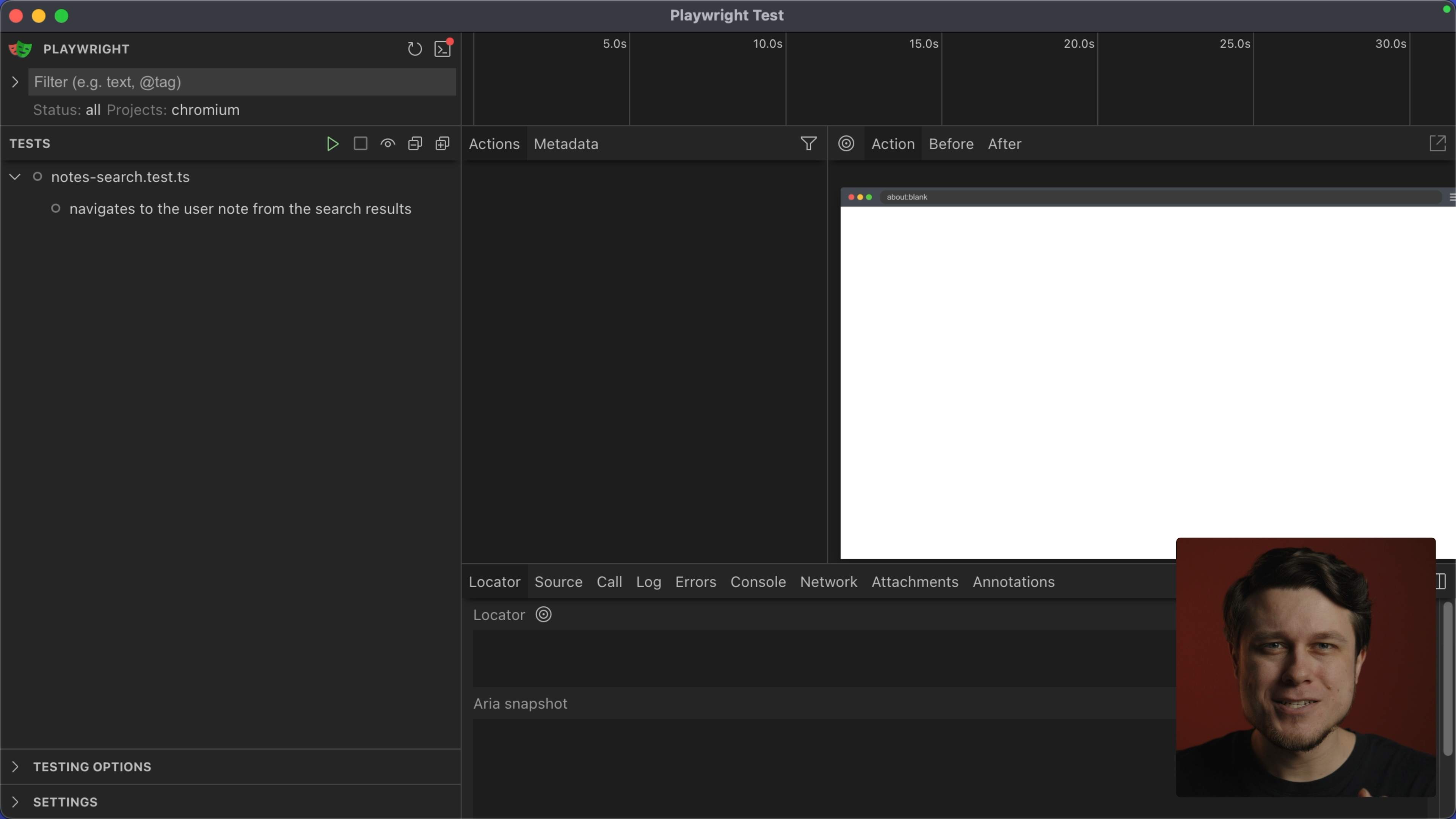
All of those panels come into play when dealing with failing tests, just like the one we have on our hands right now.
Debugging the test
If I run the test from the UI mode, I can see it failing at the following step:
Displays the user notes page
getByRole("heading', { name: 'cp_cortez_ferry43\'s notes' })
But I can clearly see this element in the browser preview! For a quick sanity check, I grab the "Locator" tool from the browser preview panel and click on the problematic element. Playwright kindly prints its actual locator and the ARIA snapshot for me to explore:
getByRole('link', { name: 'Cortes Ferry\'s Notes' })

- link "Cortez Ferry's Notes":
	- /url: link:///users/cp_cortez_ferry43
	- heading "Cortez Ferry's Notes" [level=1]
Aha! So it looks like I'm using
username for this element's accessible name instead of user.name 🤦. A quick mistake that I can quickly fix in the test:// ...
await page.getByRole('link', { name: 'My notes' }).click()
await expect(
page.getByRole('heading', { name: `${user.username}'s notes` }),
page.getByRole('heading', { name: `${user.name}'s notes` }),
'Displays the user notes page',
).toBeVisible()
// ...
From within the same UI mode, I can rerun the test to confirm my fix and see it passing now!
UI mode in practice
I highly recommend incorporating the UI mode into your testing workflow from day one. Not only is it a great debugging instrument, giving you an overview to, well, everything that's happening in your tests, but it's a fantastic, visual way to get feedback as you're writing your tests as well.